
Prerequisites
- SecureAuth Connect Workforce workspace with administrative privileges, configured with Microsoft Active Directory as the user store.
- User account with administrative privileges for Citrix StoreFront.
Get Citrix StoreFront information
-
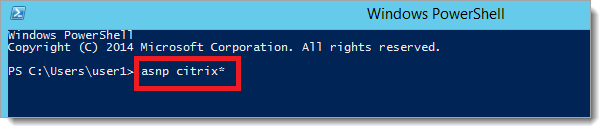
On the StoreFront™ server, open an elevated PowerShell™ and run the following command to load the Citrix modules:
asnp citrix*
-
Once the modules are loaded, run the following command to find your StoreFront VirtualPath value:
Get-STFStoreService | Out-String -Stream | Select-String "VirtualPath"
-
Run the below commands to fetch the Service Provider Information. Remember to change the value of “/Citrix/Store” with the value you obtained in the previous step.
$storeVirtualPath = "/Citrix/Store"
$auth = Get-STFAuthenticationService -Store (Get-STFStoreService -VirtualPath $storeVirtualPath)
$spId = $auth.AuthenticationSettings["samlForms"].SamlSettings.ServiceProvider.Uri.AbsoluteUri
$acs = New-Object System.Uri $auth.Routing.HostbaseUrl, ($auth.VirtualPath + "/SamlForms/AssertionConsumerService")
$md = New-Object System.Uri $auth.Routing.HostbaseUrl, ($auth.VirtualPath + "/SamlForms/ServiceProvider/Metadata")
$samlTest = New-Object System.Uri $auth.Routing.HostbaseUrl, ($auth.VirtualPath + "/SamlTest")
Write-Host "SAML Service Provider information:
Service Provider ID: $spId
Assertion Consumer Service: $acs
Metadata: $md
Test Page: $samlTest"
The sample output of the above command looks like this:
SAML Service Provider information:
Service Provider ID: https://StoreFront™.example.com/Citrix/StoreAuth
Assertion Consumer Service: https://StoreFront™.example.com/Citrix/StoreAuth/SamlForms/AssertionConsumerService
Metadata: https://StoreFront™.example.com/Citrix/StoreAuth/SamlForms/ServiceProvider/Metadata
Test Page: https://StoreFront™.example.com/Citrix/StoreAuth/SamlTest
SecureAuth Connect Configuration
- Log in to your SecureAuth Connect Workforce workspace with an admin account.
-
In your workspace, select Applications > Clients > Create client.
- Enter a name, provide your StoreFront URL in the Application URL field (optional, used if you want it to appear in the user portal after login), select SAML Service Provider, and click Create.
- Download the SAML Metadata.
- Scroll down and enable Override SAML Attributes.
- Go to the Attributes tab, choose mail from the predefined attribute list, and click Save to apply the changes.
- On the SAML tab, select the Manual and set the following configurations:
Entity ID : Enter the Issuer/EntityID of your StoreFront instance obtained in the previous section.
For example, https://StoreFront™.example.com/Citrix/StoreAuth
For example, https://StoreFront.example.com/Citrix/StoreAuth/SamlForms/AssertionConsumerService.
Enable Override Subject NameID, set Name ID Format to urn:oasis:names:tc:SAML:1.1:nameid-format:emailAddress and Name ID Value to mail.
- Click Save.
Citrix StoreFront configuration
-
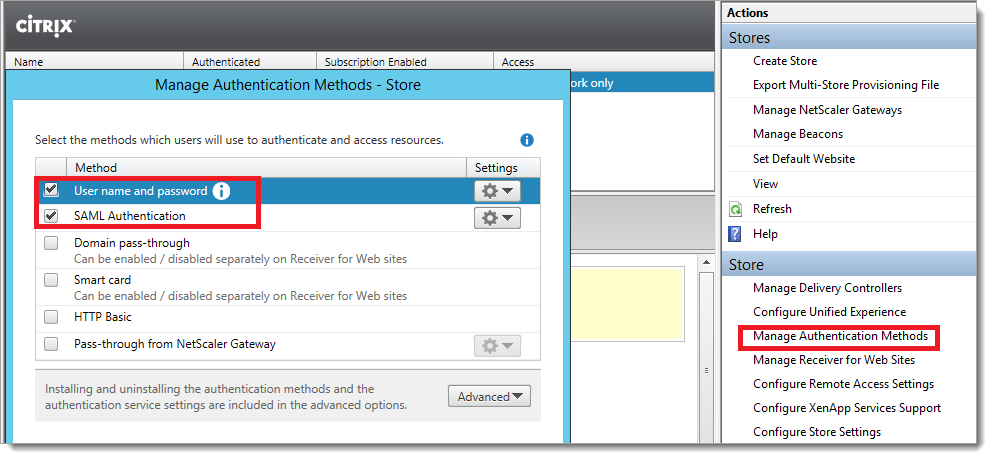
In the Citrix StoreFront console, under Manage Authentication Methods, enable SAML Authentication.
-
On the Citrix StoreFront server, open an elevated PowerShell and run the following commands.
Remember to replace
/Citrix/Storewith the VirtualPath value you obtained earlier.Get-Module "Citrix.StoreFront*" -ListAvailable | Import-Module $StoreVirtualPath = "/Citrix/Store" $store = Get-STFStoreService -VirtualPath $StoreVirtualPath $auth = Get-STFAuthenticationService -StoreService $store Update-STFSamlIdPFromMetadata -AuthenticationService $auth -FilePath "File path of the metadata file you downloaded from SecureAuth Connect"
Comments
Please sign in to leave a comment.